Allocate IP addresses
IP address pools (CoreIPAddressPool) dynamically allocate individual IP addresses from source prefixes.
Prerequisites
- A running Infrahub instance
Schema used in this guide
The examples on this page use the following schema nodes. Adapt the type names to match your own schema.
nodes:
  - name: IPPrefix
    namespace: Ipam
    inherit_from:
      - "BuiltinIPPrefix"

  - name: IPAddress
    namespace: Ipam
    inherit_from:
      - "BuiltinIPAddress"

  - name: Device
    namespace: Infra
    human_friendly_id: ["name__value"]
    attributes:
      - name: name
        kind: Text
        unique: true
    relationships:
      - name: primary_ip
        peer: IpamIPAddress
        kind: Attribute
        cardinality: one
Step 1: Create an IP prefix object
Create the IP prefix that serves as the allocation source:
- Web interface
- GraphQL
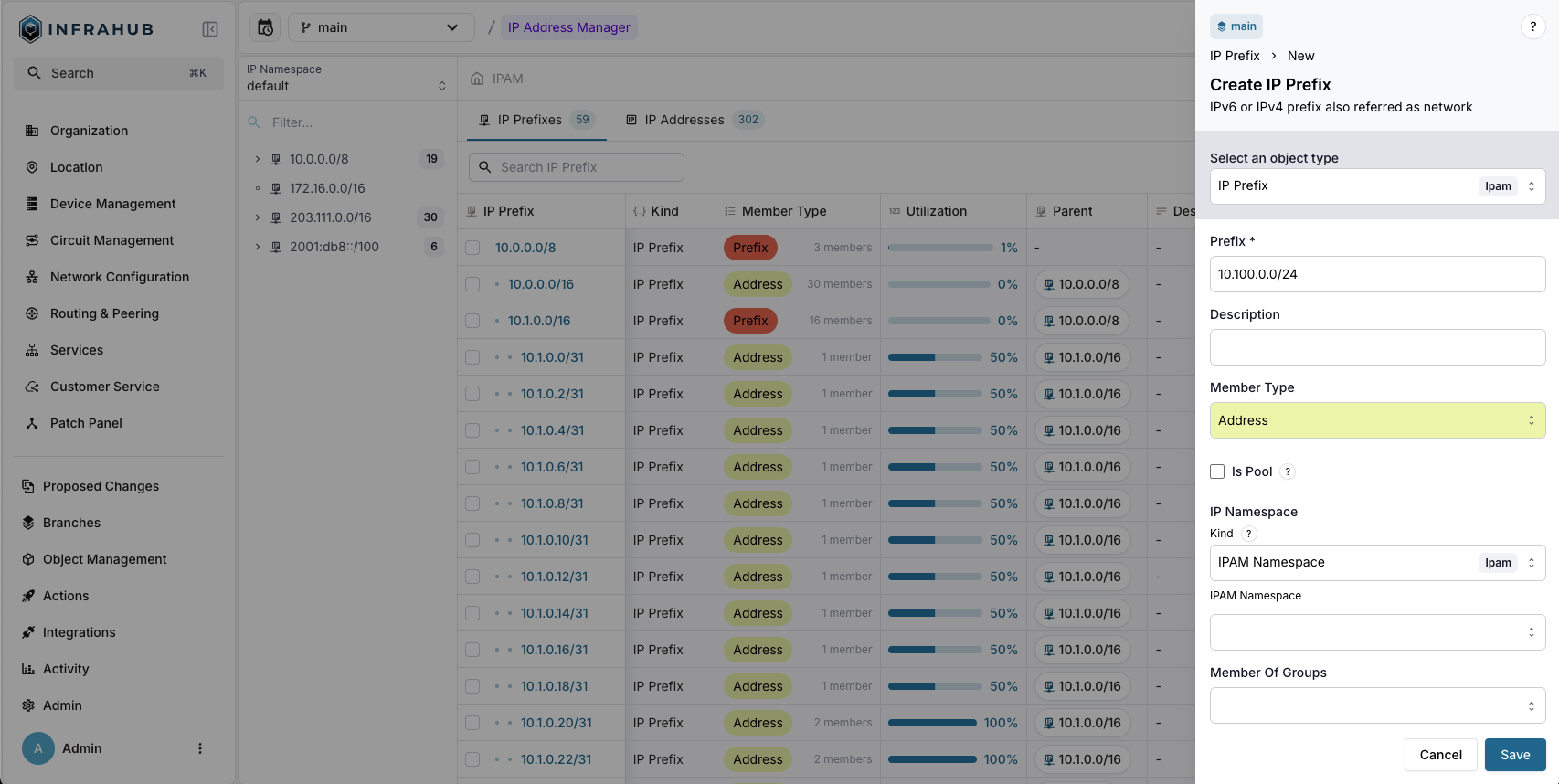
Navigate to IPAM → IP Prefixes and create a new prefix with:
- Prefix:
10.100.0.0/24 - Member Type:
address
mutation {
  IpamIPPrefixCreate(data: {
    prefix: {value: "10.100.0.0/24"},
    member_type: {value: "address"}
  })
  {
    ok
    object {
      id
    }
  }
}
Save the prefix ID for the next step!
Step 2: Create the IP address pool
Create a CoreIPAddressPool Resource Manager:
- Web interface
- GraphQL
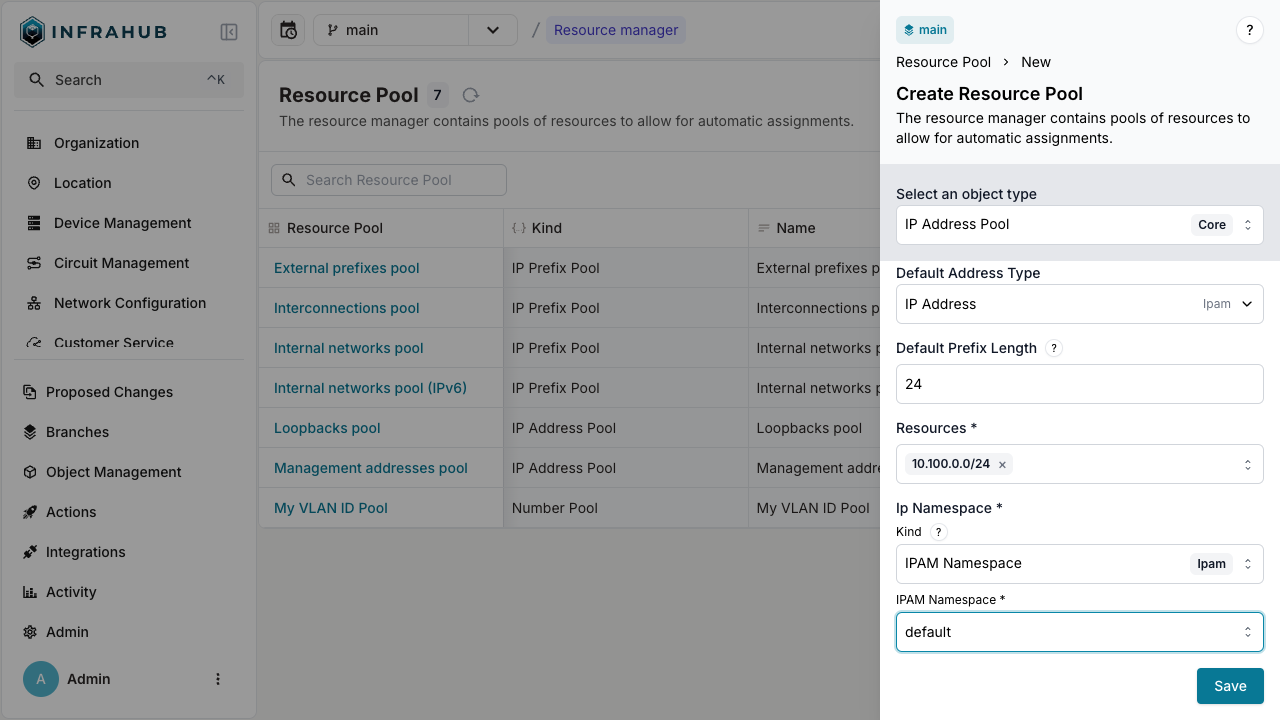
Navigate to Object Management → Resource Manager and create a new IP Address Pool with:
- Name:
My IP address pool - Default Address Type:
IpamIPAddress - Default Prefix Length:
24 - Resources: Select the
10.100.0.0/24prefix - IP Namespace:
default
mutation {
  CoreIPAddressPoolCreate(data: {
    name: {value: "My IP address pool"},
    default_address_type: {value: "IpamIPAddress"},
    default_prefix_length: {value: 24},
    resources: [{id: "<prefix-id>"}],
    ip_namespace: {id: "default"}
  })
  {
    ok
    object {
      id
      hfid
    }
  }
}
Save the pool ID for allocation operations!
Step 3: Allocate IP addresses
You can allocate IP addresses in two ways: direct allocation or allocation during node creation.
Direct allocation
Allocate an IP address directly from the pool:
- Web interface
- GraphQL
Create an IP address. Next to the Address field, click the pool button, labeled "select a pool", and choose My IP address pool, then save. Infrahub allocates the next available address from the pool and creates the IP address with it.
Infrahub allocates a new address on each save. To get the same address back when a script or a Generator runs again, use the GraphQL method with an identifier.
mutation {
  InfrahubIPAddressPoolGetResource(
    data: {
      hfid: ["My IP address pool"]
      data: {description: "my first allocated ip"}
    }
  ) {
    ok
    node {
      id
      display_label
    }
  }
}
Include an identifier field, and repeated calls with the same identifier return the same IP address:
mutation {
  InfrahubIPAddressPoolGetResource(
    data: {
      hfid: ["My IP address pool"]
      data: {description: "my first allocated ip"}
      identifier: "my-allocated-ip"
    }
  ) {
    ok
    node {
      id
      display_label
    }
  }
}
This is essential for Generators and automated workflows. On another branch that cannot read the allocated address yet, a request with the same identifier gets a different address. See Idempotent allocation for the rules.
You have created an IP address record from the pool!
Allocation during node creation
Allocate an IP address when creating a device:
- Web interface
- GraphQL
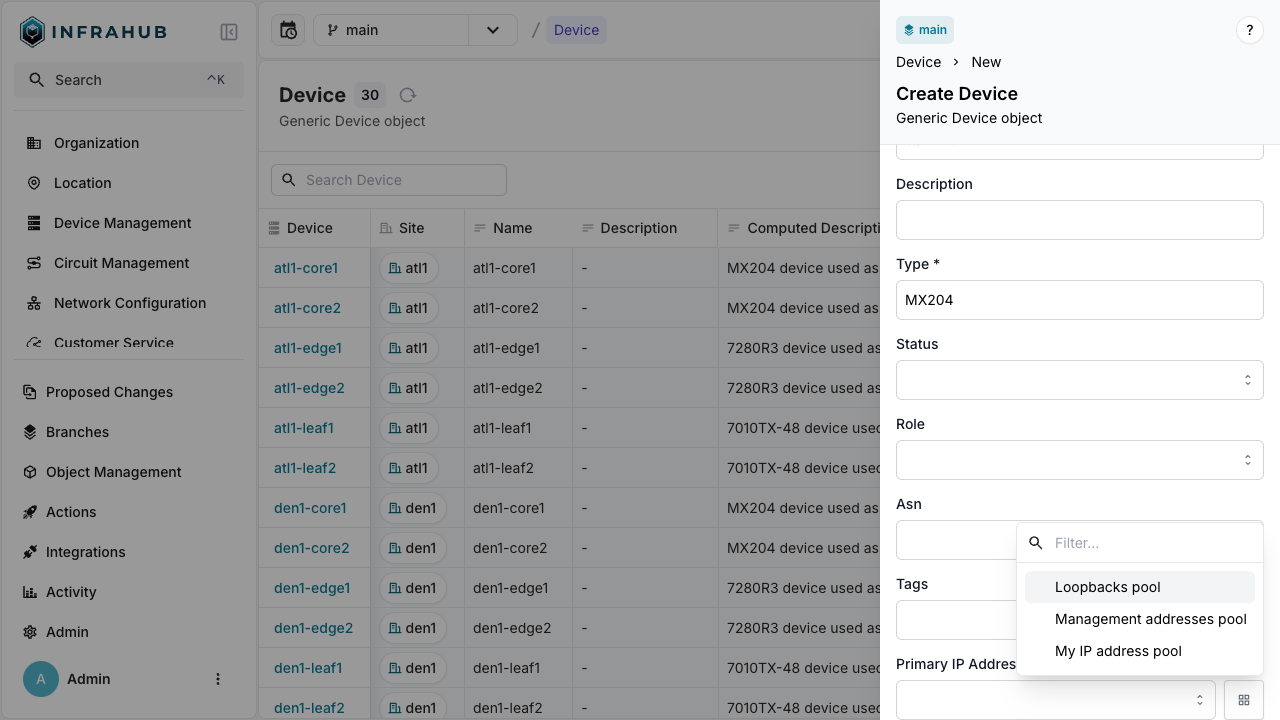
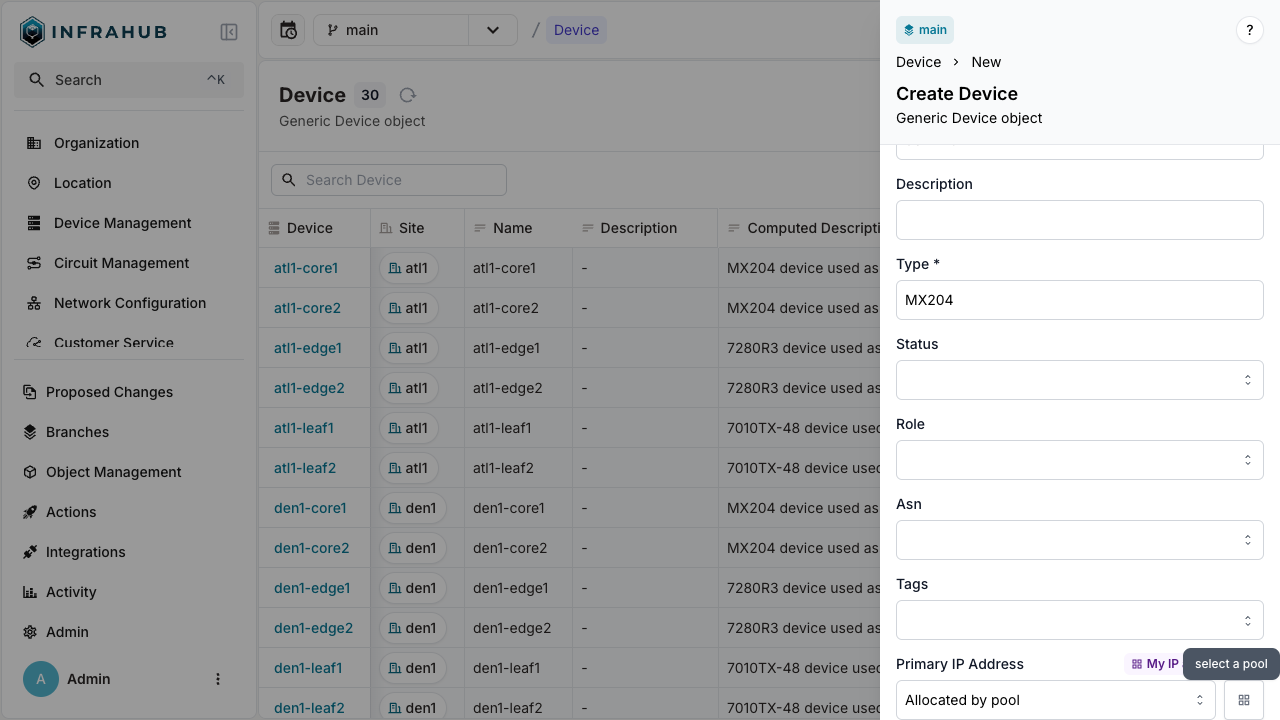
Navigate to Devices → Add Device. Next to the Primary IP Address field, click the pool button, labeled "select a pool", and choose your resource pool.
mutation {
  InfraDeviceCreate(
    data: {
      name: {value: "dev-123"}
      primary_ip: {from_pool: {id: "<POOL-ID>"}}
    }
  ) {
    ok
    object {
      display_label
      primary_ip {
        node {
          address {
            value
          }
        }
      }
    }
  }
}
The device is created with primary IP address allocated from the pool!
Next
- Allocate IP prefixes
- Allocate numbers
- Weighted allocation to control which source prefixes are preferred